

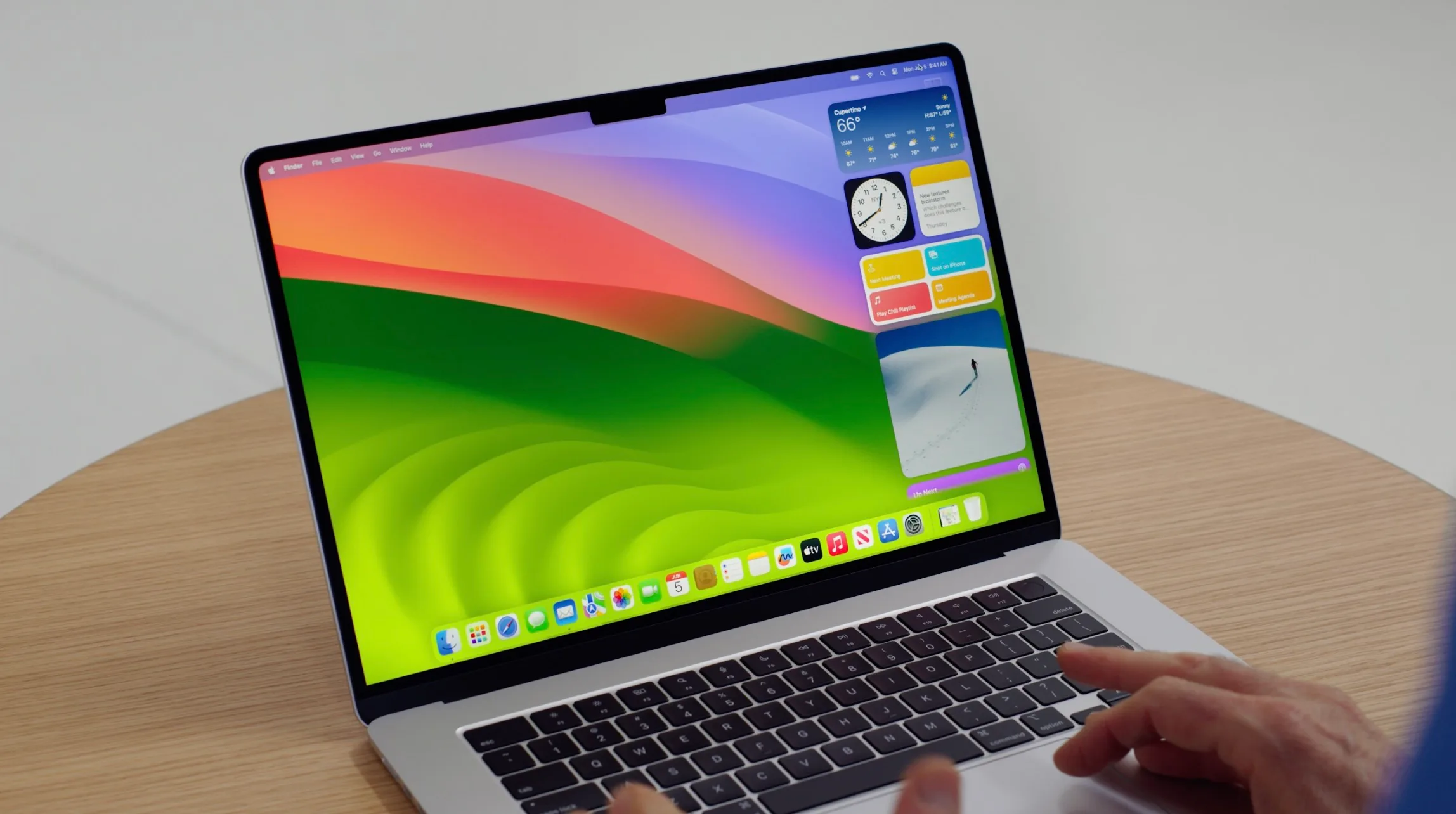
Many of our customers use a Mac, what we noticed is that not everyone knows all the keyboard shortcuts like most Windows users. Therefore in this blog a complete overview of all keyboard shortcuts. Handy and #superlogical
What do we call the symbols in the menu and on your keyboard?
| Command or Cmd “former apple” |
 |
| Option “formerly alt” |
 |
| Control |  |
| Shift |  |
| Tab |  |
| Return |  |
| Enter |  |
| Eject |  |
| Escape |  |
| Delete |  |
| Forward delete (fn+Delete on small keyboards) |  |
| Page up |  |
| Page down |  |
| Home (fn-Left arrow key on small keyboards) |  |
| End (fn-right arrow key on small keyboards) |  |
| Arrow keys |  |
| fn key |  |
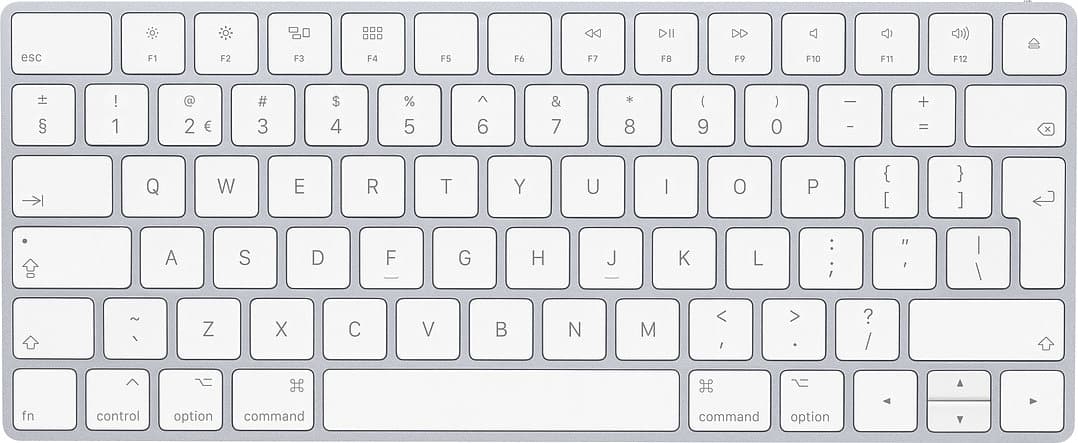
Overview of Common Mac Shortcuts and Shortcuts on Your Keyboard
Hotkeys that work globally
| Description | Key combination |
| Go to next item (shift-tab for previous) | Tab |
| Copy | Cmd-C |
| Paste | Cmd-V |
| Undo | Cmd-Z |
| Restoring the Cmd-Z action again | Cmd-Shift-Z |
| Cmd-p |
Shortcut keys you can use within the system
| Description | Key combination |
| If a program normally opens with the last closed window, you can bypass it with this key | Hold shift while starting the program |
| Turn off notifications | Press option and the notification bar (far upper right) |
| Adjust volume with smaller increments | Option-Shift volume up/down |
| Change volume with tones | Shift-Volume up/down |
| Turn screen mirroring on/off (with an external monitor | Cmd brightness down (on a macbook with touchbar, press the arrow first to expand the touchbar options) |
| Change brightness (brighter and darker) of external monitor (If the monitor also supports this, otherwise use the settings and buttons on the monitor) | option-shift-sun up/down (with ctrl added you do this on the external monitor |
| Change brightness in smaller increments | Stop all programs and reboot without confirmation. |
| Open the sound preferences | Option volume up/down or mute |
| Open the display preferences | Option brightness up/down |
| Search for a menu item | Press cmd-shift-? |
Key combinations for using the Finder
| description | key combination |
| Copy a file or folder (option to copy the path) | Cmd-C |
| Paste a copied file or folder | Cmd-V |
| Paste a copied file exactly (preserve file permissions, requires admin authentication) | Cmd-V, then Cmd-Opt-V |
| Change window view (icon, list, collom, gallery) | Cmd-1, Cmd-2, Cmd-3, Cmd-4 |
| Open selected folder (in column or list view | Right arrow |
| (in column view) go back one folder (in list view) collapse a folder |
Left arrow |
| Selecting an adjacent folder or file (icon view) | Arrow key in the direction of the item you want to select. |
| Rename a selected folder or file | return |
| While dragging, move a file instead of copying it | Hold down Cmd |
| While dragging, copy a file instead of moving it (copying is indicated by a green plus sign) | Hold Option |
| While dragging, create a shortcut | hold cmd and option |
| Move a file to the recycle garbage can | cmd-delete |
| Delete a file immediately | cmd-option-delete |
| Empty the trash | cmd-shift-delete |
| Empty the trash without warning | cmd-shift-opt-delete |
| Give a file quick know | space |
| file search | cmd-f |
On and off
| key combination | description |
| Cmd-alt-P-R during startup | “zap the PRAM” often solves very many unexplained problems (TIP!) |
| Key C during startup | Boot from a CD with a System folder |
| Key N during startup | Boot up from a Netboot Server |
| Key R during startup | Reset the PowerBook screen |
| Key T during startup | Booting up in FireWire Target Disk mode |
| Key Shift during startup | Boot into Safe Boot mode and temporarily disable the login items and other esential kernel extension files (Mac OS X 10.2 and later) |
| Press Cmd-V during startup | Booting up in Verbose mode. |
| Press Cmd-S during startup | Booting up in Single-User mode (Apple line) |
| turn off the computer (without confirmation message) | cmd-option-ctrl and the eject/on-off button |
| Reboot the computer (without confirmation message | cmd-ctrl-eject |
| Force the computer to reboot (do this only if really necessary) | cmd-ctrl and the start button |
| Put the computer in sleep mode | cmd-option-eject |
| Give it restart, exit and snooze dialog again | ctrl and the eject/on/off button |
| Turn off the monitor | ctrl-shift and press the eject/power button |
Menu
| Keyboard shortcut | description |
| Apple Menu | |
| Shift-Cmd-Q | Logout |
| Shift-Alt-Cmd-Q | Immediate logout |
| Finder Menu | |
| Shift-Cmd-Delete | Empty wastebasket |
| Alt-Shift-Cmd-Delete | Empty trash immediately |
| Cmd-H | Hide Finder |
| Alt-Cmd-H | Hide other |
| Archive Menu | |
| Cmd-W | Close window |
| Alt-Cmd-W | Close all windows |
| Cmd-N | New Finder window |
| Shift-Cmd-N | New leaflet |
| Cmd-O | Open |
| Cmd-S | Save |
| Shift-Cmd-S | Save as |
| Cmd-P | |
| Cmd-I | Show Info |
| Alt-Cmd-I | Show Info extra |
| Cmd-D | Duplicate |
| Cmd-L | Create Alias |
| Cmd-R | Show original of Alias |
| Cmd-T | Add to favorites |
| Cmd-Delete | Move to trash |
| Cmd-E | Eject |
| Cmd-F | Search |
| Change Menu | |
| Cmd-Z | Undo |
| Cmd-Y | Run Again |
| Cmd-X | Cut |
| Cmd-C | Copy |
| Cmd-V | Paste |
| Cmd-A | Select all |
| Cmd-1 | Display symbols |
| Cmd-2 | Display list |
| Cmd-3 | Display columns |
| Alt-Cmd-B | Hide toolbar |
| Cmd-J | Show display options |
| Cmd - [ | Back |
| Cmd - ] | Forward |
Word processing
| Description | key combination |
| Go to the end of all text | cmd down arrow |
| Go to the beginning of all text | cmd-arrow up |
| Go to the end of the current line | cmd-arrow to the right |
| Go to the beginning of the current line | cmd-arrow left |
| Go to the end of the current word | option-right arrow |
| Go to the beginning of the current word | option-left arrow |
| delete text to the right of the text cursor | fn-delete |
| delete a word to the left of the text cursor (up to spaces or punctuation such as - or ‘) | option-delete |
| Paste text without including formatting (font, color, size, etc...) | cmd-shift-v |
| Look up a word in dictionaries (only in apple programs | cmd-ctrl-d |
| Display emoji choice | cmd-ctrl-space |
| Display special characters/accents | Hold down the desired key, then a menu comes up where you press the corresponding number on the keypad for a character/accent. (ë é è ß) |
| Complete word | Start typing the word and press option-esc, a list of suggested words will now open |
| Enable/disable bold text | cmd+b |
| Turn italics on/off | cmd+i |
| Add a link to the selected text | cmd+k |
| Enable or disable underlining | cmd+u |
| Delete text between the insertion mark and the end of the line | cmd+k |
| Display “save as” dialog box | cmd+shift+s |
| Quickly save current file | cmd+s |
Dock
| Description | key combination |
| Hide all programs except the one you select | Command-option+click on the program in the dock |
| Hide the program you are leaving | option-click on the program you are going to |
| Display an item's location in the Finder | Command-click on the item |
| Open a file with a particular program instead of the default program | Drag the file onto the icon of the desired program in either the dock, or in a finder window |
| Force an app to stop | ctrl-click the icon in the dock, then hold down the option |
| Move dock left/right/bottom of screen | Hold shift and drag the thin bar in the dock |
| Turn magnification on/off temporarily | hold down ctrl-shift |
| Resize the dock in increments IPV free | hold down option while dragging the bar in the dock |
Web browser
| Description | key combination |
| Select URL | cmd-l |
| Go to the next tab | ctr-tab |
| Go to previous tab | ctrl-shift-tab |
| Switch between tabs, go directly to the 1st, 2nd, 3rd, 4th, etc.. tab | Cmd-1 to 8, cmd-9 goes to the last tab IPV the 9th |
| Web page search | cmd-f |
| Move between found items | enter for next, shift-enter for previous |
| Cancel current search | Press escape |
| scroll up/down the entire screen | down: space bar or option arrow down Up: shift-space or option-arrow up |
| Open a link in a new tab without changing tabs | cmd-click on a link |
| Open a link in a new tab and go to that tab | cmd-shift click on a link |
| Open a link in a new window | cmd-option-shift click on a link (safari) shift click on a link (google chrome) |
| Add a link to your to-read list (safari) | shift-click on a link |
Apple Mail
| Description | key combination |
| send message | cmd-shift-D |
| respond to a message | cmd-R or double click on a message |
| Respond to all addressees | cmd-shift-R |
| go to inbox | cmd-1 |
| go to other mailboxes in your favorites bar | cmd-2, 3, 4, etc.. |
| Prevent the following message from being automatically selected and marked as read | option-delete |
| search the current message | cmd-f |
| Search all posts | cmd-option-f |
| Start a new mail | cmd-N |
Creating screenshots
| Description | key combination |
| Take a screenshot or record the screen (new in Mojave) | cmd-shift-5 |
| Take a screenshot of the entire screen | cmd-shift-3 |
| Take a screenshot of a selected section | cmd-shift-4 and drag over an area. Press spacebar for a whole window (with option you remove the shadow)while towing: Hold shift to adjust horizontal/vertical size only Hold option to drag centered |
| Take a screenshot of the touch bar (if applicable) | cmd-shift-6 |
Window
| Description | Key Combination |
| Open a folder in a new window or tab (default tab) | cmd arrow to Cmd-click with the mouse or trackpad |
| Open a selected folder (icon view, list view and gallery view) | Cmd down arrow |
| Open a parent folder and close current folder | Cmd up arrow |
| Go back | Cmd-[ |
| Move forward | Cmd-] |
| Scale a single column to the longest name (column view) | Double-click on the column separator line |
| Scale all columns to the longest name | Option-Double-click on the column separator line |
| Display the location of a selected folder/file | cmd+click on the name of the file in the top bar |
| Change the display of Favorites column | Cmd-Option-S |
| Show status bar | Cmd-T |
| Move or remove a button from the toolbar | Cmd-Drag the button from the toolbar |
Spotlight
| Description | Key combination |
| Display spotlight | cmd-space |
| open spotlight selection | enter (uses the arrows to select) |
| Display selected item in finder | In spotlight: cmd-enter In Finder: cmd-r |
| Go to the first result of the next/previous category | Type in the word at spotlight and press cmd-l |
| Search the Internet | Type the search in spotlight and press cmd-b |
| Empty the spotlight search bar | esc to clear the search bar, esc again to close the search bar |
Quickly switching between apps
| Description | key combination |
| open and navigate the app switcher | Cmd-tab to open the drop-down menu, hold cmd while selecting your program. Press Tab to move a program to the right, press ~ to move a program to the left, esc to cancel |
| Close program | cmd+q |
| Hide program (also does not show up in the dock) | Cmd-H |
| hide all programs except current ones | cmd-option-H |
| Minimize app to dock | cmd-m |
| close the app switcher | Press esc |
| Go to next window | Cmd-tilde(~) |
| Go to previous window | Cmd-shift-tilde(~) |
| Drag a trailing window without making it active |
cmd+drag the window |
| open mission control | ctrl-arrow up |
| Switch between desktop/full screen program | ctrl-arrow left/right |
| Display windows of current program | ctrl-down arrow |
| display desktop | F11 (using the FN key) or cmd-F3 (without the FN key) |
Hopefully this overview will help you work a little more pleasantly, if you have any questions or comments please contact contact on.